
Text to video
Write the scene, camera movement, lighting, action, and sound in one prompt.
Direct the camera, action, atmosphere, and sound. The Seedance AI video generator turns that intent into a short, reviewable clip.
Task state and the generated video appear here.
Choose a mode, write a prompt, and submit a task. The playable result will replace this panel.
Start with the material you already have. Each mode keeps the same real generation workflow while changing how you direct the first frame.
Write the scene, camera movement, lighting, action, and sound in one prompt.

Upload a start frame, add an optional end frame, and describe the motion between them.

Combine reference images, footage, and optional audio with precise written direction.
The studio keeps creative choices visible before you spend credits. Available model options are loaded from the live catalogue.
Describe a dolly, track, orbit, push, pull, or locked frame directly in the prompt.
Choose the aspect ratio that fits a landscape, portrait, square, or wide composition.
Set a short duration from the options in the studio and see the credit estimate before generating.
Select from the output sizes supported by the model currently enabled for your mode.
Request sound when supported, or add an audio reference alongside visual material in remix mode.
A compact workflow keeps the brief, production settings, task status, and delivered video together.
Describe who or what is moving, where the camera is, and how the moment should feel.
Choose an enabled model, aspect ratio, resolution, duration, and sound preference.
Sign in when needed, confirm the credit estimate, and submit the video generation request.
Follow the live status, play the returned clip, download it, or revisit it from your library.
Four visual directions you can inspect, adapt, and send back to the composer.
Low tracking shot, suspended dust, controlled speed.
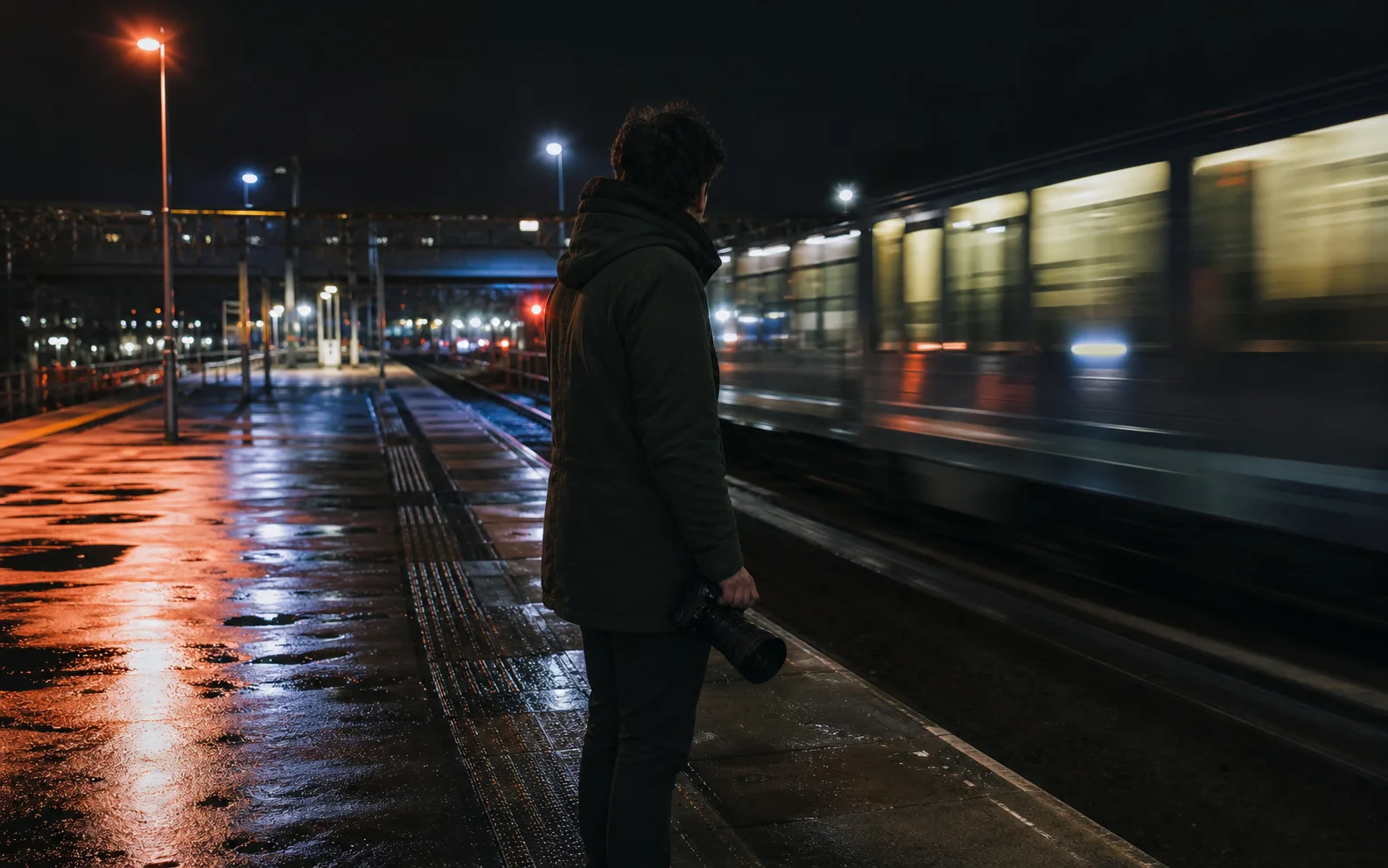
Quiet platform movement with documentary light.
Material details, soft daylight, deliberate camera arc.
Precise macro inserts and a measured reveal.
Use one studio to develop a visual idea, test alternate directions, and prepare clips for different publishing contexts.
Turn a creative brief or product moment into short visual directions for review.
Explore establishing shots, transitions, character beats, and atmospheric scenes.
Compose landscape, portrait, or square clips around the channel you plan to use.
Reuse a promising prompt, adjust the direction, and keep each completed task in your library.
Use one focused guide for each decision: where to start, how to write the shot, which version is being discussed, and how to compare tools with the same brief.
Follow the browser workflow from choosing a mode through reviewing the returned task.
Read the getting-started guideBuild a prompt from subject, action, camera, atmosphere, sound, and constraints.
Open the prompt tutorialSeparate official version announcements from the model currently enabled in this workspace.
Compare version sourcesTest Seedance, Kling, Veo, and Sora with a repeatable brief instead of relying on a single demo.
Use the comparison frameworkChoose a creation mode, describe the motion, and let the live studio handle the task from submission to playback.
What the current Seedance AI video maker accepts, shows, and returns.
You can start from a text prompt, animate a start image with an optional end image, or create a reference remix with images, video, and optional audio.
Upload the supported file type shown on each slot, then name the reference in your prompt with @Image1, @Image2, @Video1, or @Audio1. The studio validates file type, size, and video or audio duration before generation.
Resolution options come from the enabled model catalogue and appear in the studio before you submit. They can differ by model and creation mode.
The current duration control offers short clips from 4 to 15 seconds. Your credit estimate updates with the selected model, duration, and resolution.
You can request generated sound when the selected model supports it. Reference remix also accepts a supported audio file alongside visual references.
The result panel follows the live task until a playable video is returned. Signed-in users can also revisit stored task status and completed results from My library.